Your YouTube video might be a masterpiece, but if your thumbnail doesn’t stop the scroll, nobody will ever know. Studies show that thumbnails drive up to 90% of click decisions on YouTube. That tiny 1280×720 image is arguably more important than your title, your description, or even your content itself.
The good news? You no longer need Photoshop skills or a graphic designer on retainer. In 2026, AI-powered tools can generate scroll-stopping YouTube thumbnails in minutes — sometimes seconds. But with so many options available, which one actually delivers?
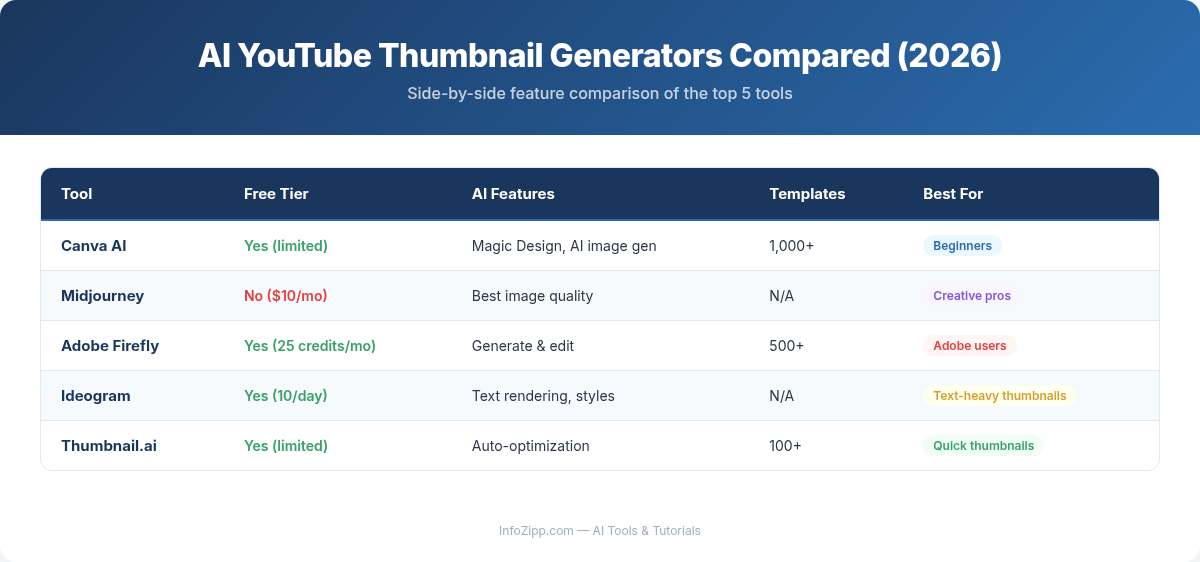
In this AI Tools Hub comparison, we tested five of the most popular AI tools for creating YouTube thumbnails: Midjourney, Canva AI, Pikzels, Leonardo AI, and ChatGPT (GPT-4o image generation). We’ll walk you through how each one works, what it costs, and which tool fits your specific needs.
Why AI Thumbnail Generators Matter in 2026
Before we dive into the tools, let’s understand why AI thumbnail creation has become essential:
- Speed: Traditional thumbnail design takes 30–60 minutes. AI tools cut that to under 5 minutes.
- Consistency: AI can learn your brand style and produce thumbnails that match your channel’s visual identity.
- A/B Testing: Generate multiple variations instantly so you can test which thumbnail drives higher click-through rates (CTR).
- No Design Skills Required: Describe what you want in plain English, and the AI handles composition, lighting, and color theory.
Now let’s see how each tool performs in practice.
1. Midjourney — Best for Photorealistic, High-Impact Thumbnails
Midjourney remains the gold standard for AI image quality in 2026. If you want thumbnails that look like they were shot by a professional photographer, Midjourney is your tool.
How to Create a YouTube Thumbnail with Midjourney
- Join Midjourney via their website at midjourney.com and subscribe to a plan.
- Open the editor and start a new image generation.
- Write your prompt. Be specific about composition. Example: “A shocked man looking at a laptop screen showing a stock chart going up, bright yellow background, dramatic lighting, YouTube thumbnail style, 16:9 aspect ratio –ar 16:9”
- Select your favorite from the four generated options and upscale it.
- Download the high-resolution image and add text overlay in your preferred editor (or use Canva for that final step).
Quality, Pricing, and Best For
- Image Quality: 9.5/10 — Exceptional photorealism, cinematic lighting, and detailed compositions.
- Text Rendering: Improved significantly but still inconsistent for thumbnail text. Plan to add text separately.
- Pricing: Basic 0/month (limited generations), Standard 0/month (~900 fast images + unlimited relaxed mode), Pro 0/month. Annual billing saves 20%.
- Best For: Creators who prioritize visual quality above all else and don’t mind a two-step workflow (generate image + add text separately).
2. Canva AI (Magic Studio) — Best All-in-One Solution for Beginners
Canva has evolved far beyond simple templates. With Magic Studio — its suite of 25+ AI tools — Canva now offers end-to-end thumbnail creation from image generation to text overlay to final export, all in one platform.
How to Create a YouTube Thumbnail with Canva AI
- Open Canva and select the “YouTube Thumbnail” template (pre-set to 1280×720).
- Use Magic Media: Click “Magic Media” in the left panel and describe the image you want. Example: “An excited gamer wearing headphones celebrating a victory, neon purple and blue background.”
- Choose a style preset — Canva offers options like Photo, Digital Art, 3D, Drawing, and more.
- Place the generated image on your canvas. Use “Background Remover” if you want to isolate the subject.
- Add text, effects, and branding using Canva’s drag-and-drop editor. Choose bold fonts, add outlines, and adjust colors.
- Download as PNG at 1280×720 resolution.
Quality, Pricing, and Best For
- Image Quality: 7.5/10 — Good for stylized and illustrative thumbnails. Not as photorealistic as Midjourney, but more than adequate for most YouTube content.
- Text Rendering: Excellent — you add text manually with full control over fonts, sizing, and effects.
- Pricing: Free tier available with limited AI generations. Canva Pro at 5/month unlocks full Magic Studio access (~500 AI uses/month).
- Best For: Beginners and creators who want a single platform for everything — image generation, text, templates, and export. No learning curve.
3. Pikzels — Best Dedicated YouTube Thumbnail Tool
Unlike general-purpose AI image generators, Pikzels was built specifically for YouTube thumbnails. It understands what makes thumbnails click-worthy and offers features like FaceSwap, thumbnail recreation, and style-specific generation optimized for CTR.
How to Create a YouTube Thumbnail with Pikzels
- Sign up at Pikzels.com — you get 5 free thumbnails without a credit card.
- Choose a thumbnail style. Pikzels supports 12 proven YouTube thumbnail formats: action-based, perspective, face-focused, object-focused, free-panel, and more.
- Describe your video using the “Prompt to Thumbnail” feature. Example: “Tech review of the new iPhone, surprised reaction, split screen before and after.”
- Customize with FaceSwap: Upload your face photo and Pikzels will swap it into the generated thumbnail with accurate expressions and pose matching.
- Generate and refine. Pikzels also suggests optimized titles to pair with your thumbnail for maximum CTR.
- Download your ready-to-upload thumbnail.
Quality, Pricing, and Best For
- Image Quality: 8/10 — Purpose-built for thumbnails, so compositions are optimized for small-screen viewing and click appeal.
- Text Rendering: Built-in title generation and overlay — no separate editor needed.
- Pricing: Essential 0/month (2,400 credits), Premium 0/month (18,000 credits + FaceSwap), Ultimate 0/month (54,000 credits + private generations). 30% discount on annual plans.
- Best For: Dedicated YouTubers who want a purpose-built tool with FaceSwap, style presets, and CTR optimization in one package.
4. Leonardo AI — Best Free Option for Budget Creators
Leonardo AI offers the most generous free tier in the AI image space — 150 tokens per day, which translates to roughly 30–50 images daily. For creators just starting out or those on a tight budget, Leonardo AI delivers impressive quality at zero cost.
How to Create a YouTube Thumbnail with Leonardo AI
- Sign up at leonardo.ai — the free tier activates immediately.
- Select “Image Generation” from the dashboard.
- Choose your model. For thumbnails, Phoenix or Kino XL work well for photorealistic results. Anime and illustration models are available for different styles.
- Write your prompt and set the aspect ratio to 16:9. Example: “Close-up of a chef tasting food with an exaggerated surprised expression, warm kitchen background, vibrant colors, studio lighting.”
- Use AI Canvas for refinements — inpainting lets you change specific parts of the image (swap the background, adjust facial expressions), and outpainting extends the frame if needed.
- Download and add text overlay using Canva or another editor.
Quality, Pricing, and Best For
- Image Quality: 8.5/10 — Surprisingly close to Midjourney, especially with the right model selection and prompt engineering.
- Text Rendering: Limited — like Midjourney, you’ll need an external tool for text overlays.
- Pricing: Free tier (150 tokens/day). Paid plans start at 0/month, with 5/month and 0/month tiers for faster generation, more credits, and commercial licensing.
- Best For: Budget-conscious creators and beginners who want high-quality AI images without paying anything. The free tier is genuinely usable for daily thumbnail creation.
5. ChatGPT with GPT-4o Image Generation — Best for Iterative Design
OpenAI’s GPT-4o native image generation changed the game when it launched. Unlike previous DALL-E models, GPT-4o generates images with accurate text rendering, follows complex prompts precisely, and lets you iterate through conversation — making it uniquely powerful for thumbnail design.
How to Create a YouTube Thumbnail with ChatGPT
- Open ChatGPT (Plus or Pro subscription recommended for higher limits).
- Describe your thumbnail in detail. Example: “Create a YouTube thumbnail at 1280×720. Show a person holding two smartphones side by side with a versus symbol between them. Bold text at the top says ‘iPhone vs Galaxy’. Use bright red and blue split background.”
- Iterate conversationally: “Make the text bigger.” “Change the background to green.” “Add a shocked face emoji.” ChatGPT remembers context and refines the image.
- Upload a reference sketch if you have one — even a rough drawing on paper. GPT-4o can transform sketches into polished thumbnails.
- Download the final image directly from the chat.
Quality, Pricing, and Best For
- Image Quality: 8/10 — Very good overall with excellent text rendering. Occasional inconsistencies with complex scenes.
- Text Rendering: Best in class — GPT-4o can place readable, stylized text directly in the image, reducing the need for a separate editor.
- Pricing: Free tier (3 images/day). ChatGPT Plus 0/month (up to 50 images per 3 hours). ChatGPT Pro 00/month (higher limits).
- Best For: Creators who want conversational control over the design process and excellent text rendering built into the image. Ideal for those who already use ChatGPT for scripting and brainstorming.
Comparison Table: 5 AI YouTube Thumbnail Tools at a Glance
| Feature | Midjourney | Canva AI | Pikzels | Leonardo AI | ChatGPT (GPT-4o) |
|---|---|---|---|---|---|
| Image Quality | 9.5/10 | 7.5/10 | 8/10 | 8.5/10 | 8/10 |
| Text in Image | Weak | Manual (excellent) | Built-in | Weak | Best AI text |
| Free Tier | No | Yes (limited) | 5 thumbnails | Yes (150/day) | Yes (3/day) |
| Starting Price | 0/mo | 5/mo (Pro) | 0/mo | 0/mo | 0/mo (Plus) |
| Ease of Use | Moderate | Very Easy | Easy | Moderate | Very Easy |
| FaceSwap | No | No | Yes | No | Limited |
| All-in-One | No | Yes | Yes | No | Partial |
| Best For | Visual quality | Beginners | YouTubers | Budget creators | Iterative design |
YouTube Thumbnail Best Practices (Regardless of Tool)
No matter which AI tool you choose, your thumbnails need to follow proven design principles to maximize CTR:
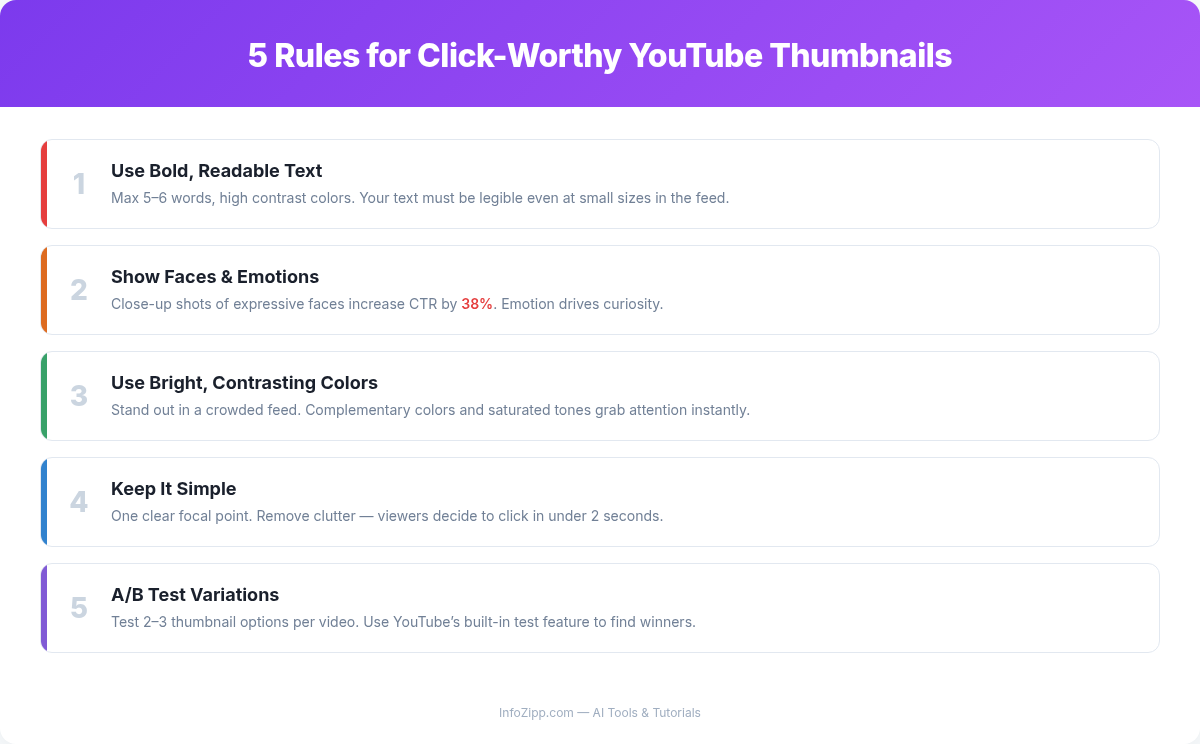
1. Use Faces with Emotion
Thumbnails with human faces — especially showing strong emotions like surprise, excitement, or curiosity — consistently outperform faceless designs. The human brain is wired to notice faces first. When prompting AI tools, specify expressions: “shocked face,” “wide eyes,” “open mouth surprise.”
2. Bold, Readable Text (3–5 Words Maximum)
Your thumbnail text should be readable even on a mobile screen. Keep it to 3–5 words maximum, use thick sans-serif fonts, and add a contrasting outline or drop shadow. Avoid repeating your video title — use complementary text that sparks curiosity.
3. High Contrast and Bright Colors
YouTube’s interface is predominantly white and light gray. Thumbnails with bright, saturated colors — especially yellows, reds, and blues — pop against the background. Use contrasting color combinations and avoid dark or muted palettes that blend into the page.
4. Follow the 1280×720 Standard
Always create thumbnails at 1280×720 pixels (16:9 aspect ratio) with a minimum width of 640 pixels. File size should be under 2MB. Use PNG format for the best quality, or JPG if you need smaller file sizes.
5. The Rule of Thirds and Visual Hierarchy
Place your main subject on one side of the thumbnail, not dead center. Leave space for text on the opposite side. Create clear visual hierarchy: primary subject first, text second, background third. Your AI prompts should specify composition — mention “left side,” “right side,” or “rule of thirds” for better results.
6. Test Before Publishing
View your thumbnail at actual YouTube sizes — the small card view (320×180) is where most people see it. If your text is unreadable or your subject is unclear at that size, go back and simplify. Some tools like Pikzels and emerging platforms now offer CTR prediction features to help you pick the best option.
Which Tool Should You Choose?
The best tool depends on your specific situation:
- Choose Midjourney if visual quality is your top priority and you’re comfortable adding text in a separate tool. Best for lifestyle, travel, and cinematic content channels.
- Choose Canva AI if you want the easiest all-in-one workflow. Generate the image, add text, and export — all without leaving Canva. Ideal for beginners and creators who value speed over maximum image quality.
- Choose Pikzels if you’re a dedicated YouTuber who wants a tool built specifically for thumbnails. FaceSwap, CTR-optimized styles, and title suggestions make it the most YouTube-focused option.
- Choose Leonardo AI if you’re on a budget. The free tier at 150 tokens per day is enough to create thumbnails daily without spending a cent. Image quality rivals paid tools.
- Choose ChatGPT (GPT-4o) if you want the best text rendering directly in your images and prefer an iterative, conversational workflow. Especially powerful if you already use ChatGPT for video scripting.
Conclusion
Creating YouTube thumbnails with AI is no longer a novelty — it’s a competitive necessity. The five tools we compared each bring different strengths to the table. Midjourney leads in raw visual quality. Canva AI offers the smoothest end-to-end workflow. Pikzels is purpose-built for YouTubers. Leonardo AI provides incredible value at no cost. And ChatGPT’s GPT-4o delivers unmatched text rendering and conversational iteration.
Our recommendation for most creators: start with Leonardo AI’s free tier to learn AI prompting, use Canva for text and final composition, and upgrade to Midjourney or Pikzels once your channel grows and you need more professional or YouTube-specific capabilities.
The thumbnail that gets the click is the one that earns the view. With these AI tools, you have no excuse not to make every single one count.
For more AI tool comparisons and hands-on tutorials, explore AI Tools Hub — we test every tool so you can pick the right one.
Explore More on AI Tools Hub

Alex Kim is an AI tools reviewer and tech writer with over 5 years of experience evaluating SaaS and AI products. He specializes in hands-on comparisons of AI writing assistants, coding tools, and productivity software — testing each tool through real-world workflows before publishing any recommendation. His mission at AI Tools Hub is to help readers cut through the hype and find AI tools that actually deliver results.