If you have been following AI developments in 2026, you have probably heard about Model Context Protocol (MCP). But what exactly is it, and why should you care? Here at AI Tools Hub, we tested MCP extensively across multiple AI platforms, and we can tell you this: MCP is the single most important protocol for connecting AI to real-world tools.
Think of MCP as the USB-C port for AI applications. Just as USB-C gives you one universal connector for all your devices, MCP gives AI models one universal way to connect to databases, files, APIs, and thousands of external tools.
In this hands-on MCP tutorial, we will walk you through everything from understanding the basics to setting up your first MCP server in Claude Desktop and Claude Code. By the end, you will have a working MCP setup and know exactly how to extend your AI with powerful external tools.
What Is the Model Context Protocol (MCP)?
The Model Context Protocol (MCP) is an open-source standard created by Anthropic in November 2024. It standardizes how AI applications like Claude, ChatGPT, and GitHub Copilot connect to external data sources, tools, and services.
Before MCP, every AI integration required custom code. Want Claude to read your files? Write a custom integration. Want it to query your database? Write another one. Want it to post to Slack? Yet another custom solution.
MCP eliminates this chaos. Build one MCP server, and every MCP-compatible AI client can use it. As of March 2026, MCP has crossed 97 million monthly SDK downloads and has been adopted by every major AI provider including Anthropic, OpenAI, Google, Microsoft, and Amazon.
The protocol was donated to the Linux Foundation’s Agentic AI Foundation (AAIF) in December 2025, cementing its status as a true open standard rather than a single company’s proprietary solution.
MCP Core Architecture: Hosts, Clients, and Servers
MCP uses a clean three-part architecture that keeps things modular and secure:
- Host: The AI application you interact with (Claude Desktop, Claude Code, VS Code, Cursor)
- Client: Lives inside the host and manages the connection to MCP servers
- Server: Exposes tools, resources, and prompts that the AI can use
Each MCP server can expose three types of capabilities:
- Tools — Functions the AI model can call (query a database, send a message, create a file). These are model-controlled, meaning the AI decides when and how to call them.
- Resources — Data the AI model can read (file contents, API responses, database records). These are identified by URIs and are typically application-controlled.
- Prompts — Pre-built templates that guide the AI through specific tasks, ensuring consistent and reliable outputs.
Why MCP Matters: The Problem It Solves
Without MCP, connecting AI to external tools is an N x M integration problem. If you have 10 AI applications and 10 tools, you need 100 custom integrations. MCP reduces this to an N + M problem — each AI app and each tool only needs one MCP implementation.
In our experience testing AI coding tools like Claude Code, Cursor, and GitHub Copilot, the difference is dramatic. Before MCP, setting up each tool integration took hours of custom configuration. With MCP, it takes a single command.
This matters even more in the context of agentic AI, where AI systems need to autonomously chain together multiple tools to complete complex tasks. MCP provides the standard plumbing that makes this possible.
MCP vs Traditional APIs: Key Differences
You might wonder: how is MCP different from just using regular APIs? Here is a detailed comparison we put together after testing both approaches side by side:
| Feature | Traditional APIs | MCP |
|---|---|---|
| Integration effort | Custom code per tool per AI app | Build once, works everywhere |
| Discovery | Manual — read docs, write code | Automatic — AI discovers available tools |
| Standardization | Every API has different format | Universal protocol for all tools |
| AI-native | Not designed for AI interaction | Built specifically for AI models |
| Bidirectional | Request-response only | Supports streaming, notifications, and push |
| Security | Varies by implementation | Built-in permission model and sandboxing |
| Context awareness | Stateless by default | Maintains conversation context across calls |
The bottom line: APIs were designed for developers. MCP was designed for AI. With traditional APIs, a developer writes code to call an endpoint. With MCP, the AI model itself discovers and calls tools based on natural language instructions from the user.
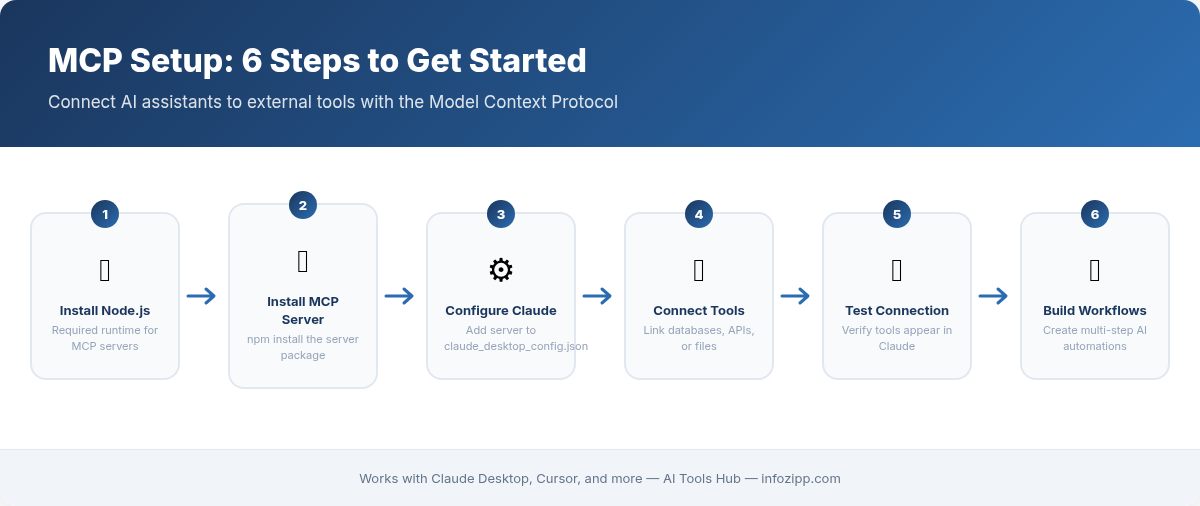
How to Set Up MCP in Claude Desktop (Step-by-Step)
Let us get hands-on. We will start with Claude Desktop since it is the most visual way to experience MCP.
Prerequisites
- Claude Desktop installed (free or paid plan)
- Node.js 18+ installed (download here)
- A text editor (VS Code recommended)
Method 1: Desktop Extensions (Recommended)
As of 2026, Claude Desktop supports Desktop Extensions, which makes installing MCP servers as easy as installing a browser extension:
- Open Claude Desktop and go to Settings > Extensions
- Click “Browse extensions” to see the directory
- Click on any tool you want (e.g., Filesystem, GitHub, Brave Search)
- Click Install — done
We tested this method and it worked flawlessly. No JSON editing, no terminal commands. The extension system handles dependencies, updates, and configuration automatically.
Method 2: Manual JSON Configuration
For more control or for servers not yet available as extensions, you can manually edit the configuration file:
Step 1: Find your config file:
- macOS:
~/Library/Application Support/Claude/claude_desktop_config.json - Windows:
%APPDATA%\Claude\claude_desktop_config.json
Step 2: Add an MCP server configuration. Here is an example that adds the Filesystem server:
{
  "mcpServers": {
    "filesystem": {
      "command": "npx",
      "args": ["-y", "@modelcontextprotocol/server-filesystem", "/Users/yourname/Documents"]
    }
  }
}
Step 3: Save the file and completely restart Claude Desktop (quit the application entirely, not just close the window).
Step 4: Look for the hammer icon in the chat input area — this confirms MCP tools are connected.
Now you can ask Claude things like “List all the files in my Documents folder” or “Find all PDF files modified this week” — and it will actually do it using the connected filesystem server.
How to Set Up MCP in Claude Code (Step-by-Step)
If you use Claude Code for development, MCP setup is even simpler since everything happens in the terminal with a single command.
Adding a Remote HTTP Server
HTTP is the recommended transport for cloud-based MCP servers. It is the most widely supported option:
# Add Notion MCP server
claude mcp add --transport http notion https://mcp.notion.com/mcp

# Add Stripe with authentication
claude mcp add --transport http stripe https://mcp.stripe.com

# Add a server with custom auth header
claude mcp add --transport http secure-api https://api.example.com/mcp \
  --header "Authorization: Bearer your-token"
Adding a Local Stdio Server
For tools that need direct access to your local machine:
# Add the filesystem server
claude mcp add --transport stdio filesystem -- npx -y @modelcontextprotocol/server-filesystem /home/user/projects

# Add GitHub server with a personal access token
claude mcp add --transport stdio --env GITHUB_PERSONAL_ACCESS_TOKEN=your_token github -- npx -y @modelcontextprotocol/server-github
Important: All options like --transport, --env, and --scope must come before the server name. The double dash -- separates the server name from the command that launches the MCP server process.
Managing MCP Servers in Claude Code
# List all configured servers
claude mcp list

# Check server status inside Claude Code
/mcp

# Get details about a specific server
claude mcp get github

# Remove a server
claude mcp remove github
We tested adding five MCP servers to Claude Code simultaneously, and it handled them without any performance issues. The key tip: use the --scope user flag if you want a server available across all your projects.
Top 10 MCP Servers You Should Install
With over 5,000 community MCP servers available as of March 2026, choosing the right ones can be overwhelming. Here are the top 10 we recommend after extensive testing:
| MCP Server | What It Does | Best For | Install Command |
|---|---|---|---|
| Filesystem | Read, write, and organize local files | Document management, code editing | npx @modelcontextprotocol/server-filesystem |
| GitHub | Manage repos, PRs, issues, and code review | Development workflows | npx @modelcontextprotocol/server-github |
| PostgreSQL | Query databases using natural language | Data analysis, reporting | npx @modelcontextprotocol/server-postgres |
| Slack | Read channels, post messages, search history | Team communication | npx @modelcontextprotocol/server-slack |
| Brave Search | Search the web with AI-optimized results | Research, fact-checking | npx @modelcontextprotocol/server-brave-search |
| Notion | Read and update Notion pages and databases | Knowledge management | claude mcp add --transport http notion https://mcp.notion.com/mcp |
| Puppeteer | Automate browser actions and scrape pages | Web automation, testing | npx @modelcontextprotocol/server-puppeteer |
| Google Drive | Search and access Google Drive files | Document retrieval | npx @modelcontextprotocol/server-gdrive |
| SQLite | Query and manage SQLite databases | Local data analysis | npx @modelcontextprotocol/server-sqlite |
| Docker | Manage containers and images | DevOps, deployment | npx @modelcontextprotocol/server-docker |
You can find hundreds more on the official MCP servers repository and the community-maintained awesome-mcp-servers list.
Real-World MCP Use Cases: 4 Practical Scenarios
To show you how powerful MCP can be in practice, here are four scenarios we actually tested in our workflow:
Scenario 1: Automated Code Review with GitHub MCP
We connected the GitHub MCP server to Claude Code and asked it to review a pull request. Claude automatically read the diff, identified a potential SQL injection vulnerability, suggested a fix, and posted the review comment — all from a single natural language prompt.
# Setup
claude mcp add --transport stdio --env GITHUB_PERSONAL_ACCESS_TOKEN=ghp_xxx github -- npx -y @modelcontextprotocol/server-github

# Usage (inside Claude Code)
"Review the latest PR on my project repo and check for security issues"
Scenario 2: Database Analysis with PostgreSQL MCP
We connected a PostgreSQL database and asked Claude to analyze user engagement data. It wrote the SQL queries, executed them, and generated a summary report — without us writing a single line of SQL manually.
# Setup
claude mcp add --transport stdio --env POSTGRES_CONNECTION_STRING=postgresql://user:pass@localhost/mydb postgres -- npx -y @modelcontextprotocol/server-postgres

# Usage
"Show me the top 10 most active users this month with their engagement metrics"
Scenario 3: Workflow Automation with Slack + Notion MCP
By combining Slack and Notion MCP servers, we created a workflow where Claude monitors a Slack channel for feature requests, automatically creates Notion tickets, and posts a confirmation back to Slack. This is the kind of AI automation that used to require complex tools like n8n, Zapier, or Make. With MCP, it is a single conversation with Claude.
Scenario 4: Local File Organization with Filesystem MCP
We pointed the Filesystem MCP server at a messy Downloads folder with 500+ files. We asked Claude to organize them by type and date. It created folders, moved files, and generated a summary report — all in about 30 seconds. This is a perfect example of how MCP turns Claude from a chatbot into an actual assistant that takes action on your behalf.
MCP Configuration Scopes Explained
One thing most MCP tutorials miss is explaining configuration scopes. Understanding these will save you hours of confusion when working across different projects and teams:
| Scope | Stored In | Who Can Access | Best For |
|---|---|---|---|
| Local (default) | ~/.claude.json |
Only you, current project only | Personal dev servers, sensitive credentials |
| Project | .mcp.json in project root |
Everyone on the team (via git) | Shared team tools, CI/CD integrations |
| User | ~/.claude.json |
Only you, all projects | Personal utilities used across projects |
# Add a server available across all your projects
claude mcp add --transport http --scope user notion https://mcp.notion.com/mcp

# Add a server shared with your entire team (committed to git)
claude mcp add --transport http --scope project paypal https://mcp.paypal.com/mcp
Pro tip: For team projects, use project scope so everyone on your team automatically gets the same MCP tools when they clone the repository. Claude Code will prompt each team member for approval before using these shared servers, keeping things secure.
Beyond MCP: A2A and AG-UI Protocols
MCP is not the only protocol shaping the AI ecosystem in 2026. Two other protocols complete the picture of how modern AI systems communicate:
A2A (Agent-to-Agent Protocol)
Created by Google and donated to the Linux Foundation in June 2025, A2A standardizes how AI agents communicate with each other. While MCP connects an agent to tools, A2A connects an agent to other agents. Think of it as HTTP for AI agents.
For example, a customer service agent built with Claude could use A2A to delegate a billing question to a specialized finance agent built on a completely different framework. Each agent publishes a machine-readable “agent card” describing its skills, making discovery automatic.
AG-UI (Agent-User Interface Protocol)
AG-UI is an open, event-based protocol that standardizes how agent backends connect to user-facing frontends. It handles the “last mile” — bringing AI agents into the user interface with real-time streaming, interactive widgets, and responsive feedback.
How All Three Protocols Work Together
In a complete AI workflow, all three protocols can appear in the same user journey:
- AG-UI connects the user’s app to the agent backend (user-to-agent)
- MCP connects the agent to external tools like databases, APIs, and files (agent-to-tool)
- A2A enables the agent to delegate tasks to specialized agents (agent-to-agent)
Understanding these three protocols gives you a complete picture of how agentic AI systems are being architected in 2026.
MCP Security Best Practices
Before you start connecting MCP servers to everything, keep these security guidelines in mind. We learned some of these the hard way during our testing:
- Only install trusted servers. Anthropic explicitly warns that third-party MCP servers are not all verified for correctness or security.
- Be cautious with servers that fetch external content. These can expose you to prompt injection attacks where malicious content manipulates the AI.
- Use environment variables for credentials. Never hardcode API keys in your config files. Use the
--envflag instead. - Limit filesystem access. Only give the Filesystem MCP server access to specific directories you need, never your entire system.
- Review project-scoped servers carefully. Claude Code prompts for approval before using team-shared MCP configurations, and you should always review what tools they expose.
Troubleshooting Common MCP Issues
During our testing, we encountered several common issues. Here are the problems and their fixes so you do not have to debug them yourself:
Problem: “Connection closed” error on Windows
Solution: Use the cmd /c wrapper for npx-based servers on native Windows (not WSL):
claude mcp add --transport stdio my-server -- cmd /c npx -y @some/packageProblem: MCP server not appearing after restart
Solution: Make sure you completely quit Claude Desktop (not just close the window). On macOS, use Cmd+Q. Also check the JSON syntax in your config file — a missing comma or bracket will cause a silent failure with no error message.
Problem: Server timeout on startup
Solution: Some MCP servers take longer to initialize, especially on first run when npm needs to download packages. Increase the timeout:
MCP_TIMEOUT=10000 claudeProblem: Tool output too large
Solution: Claude Code shows a warning when MCP tool output exceeds 10,000 tokens. If you are working with large datasets or file listings, increase the limit:
MAX_MCP_OUTPUT_TOKENS=50000 claudeFrequently Asked Questions About MCP
What is MCP in simple terms?
MCP (Model Context Protocol) is an open standard that lets AI applications connect to external tools and data sources using a universal format. Instead of building custom integrations for every tool, you build one MCP connection and it works with any MCP-compatible AI app.
Is MCP free to use?
Yes. MCP is completely open-source and free. It was created by Anthropic and donated to the Linux Foundation. Anyone can build MCP servers or clients without licensing fees or usage restrictions.
Which AI apps support MCP?
As of 2026, MCP is supported by Claude (Desktop and Code), ChatGPT, Visual Studio Code (via Copilot), Cursor, Google Gemini, Amazon Q, and hundreds of other AI applications. It has become the de facto industry standard for AI-tool integration.
Can I use MCP on the free Claude plan?
Yes. Claude Desktop supports MCP servers on both free and paid plans. However, the free plan has message limits, so heavy MCP usage may hit rate limits faster than paid plans.
How is MCP different from function calling?
Function calling is an API-level feature where you define specific functions the AI can call within a single session. MCP is a protocol-level standard that provides a universal way to expose tools, resources, and prompts across any AI application. MCP includes tool discovery, authentication, streaming, and bidirectional communication that function calling alone does not provide.
Do I need to know how to code to use MCP?
No. With Claude Desktop Extensions, you can install MCP servers with a single click — no coding required. However, building your own custom MCP servers does require programming knowledge in TypeScript or Python.
What is the difference between MCP and A2A?
MCP connects an AI agent to tools and data sources (agent-to-tool communication). A2A (Agent-to-Agent Protocol) connects AI agents to other AI agents (agent-to-agent communication). They serve complementary purposes and are designed to work together in complex AI workflows.
Start Building with MCP Today
MCP is transforming how we interact with AI tools, and the ecosystem is growing at an extraordinary pace — from 5,000+ community servers to universal adoption across every major AI platform. Whether you are a developer building AI-powered applications or a non-technical user who wants a more capable AI assistant, MCP is worth learning right now.
Here at AI Tools Hub, we believe MCP represents a fundamental shift in how AI integrates with the real world. The protocol is still evolving, with features like multimodal support and distributed agent coordination on the official 2026 roadmap.
Your next steps:
- Install Claude Desktop or Claude Code
- Add your first MCP server (we recommend starting with Filesystem)
- Experiment with combining multiple MCP servers for complex workflows
- Explore building your own custom MCP server with the official SDK
The AI tools that will dominate 2026 and beyond are the ones built on open protocols like MCP. Start building today, and you will be ahead of the curve.
