If you’ve been searching for how to use Google NotebookLM tutorial guidance, you’re about to discover one of the most underrated AI tools available today. While ChatGPT and Perplexity dominate headlines, Google has quietly built a research assistant that does something neither of them can: it works exclusively with your own sources, giving you grounded answers with zero hallucination risk.
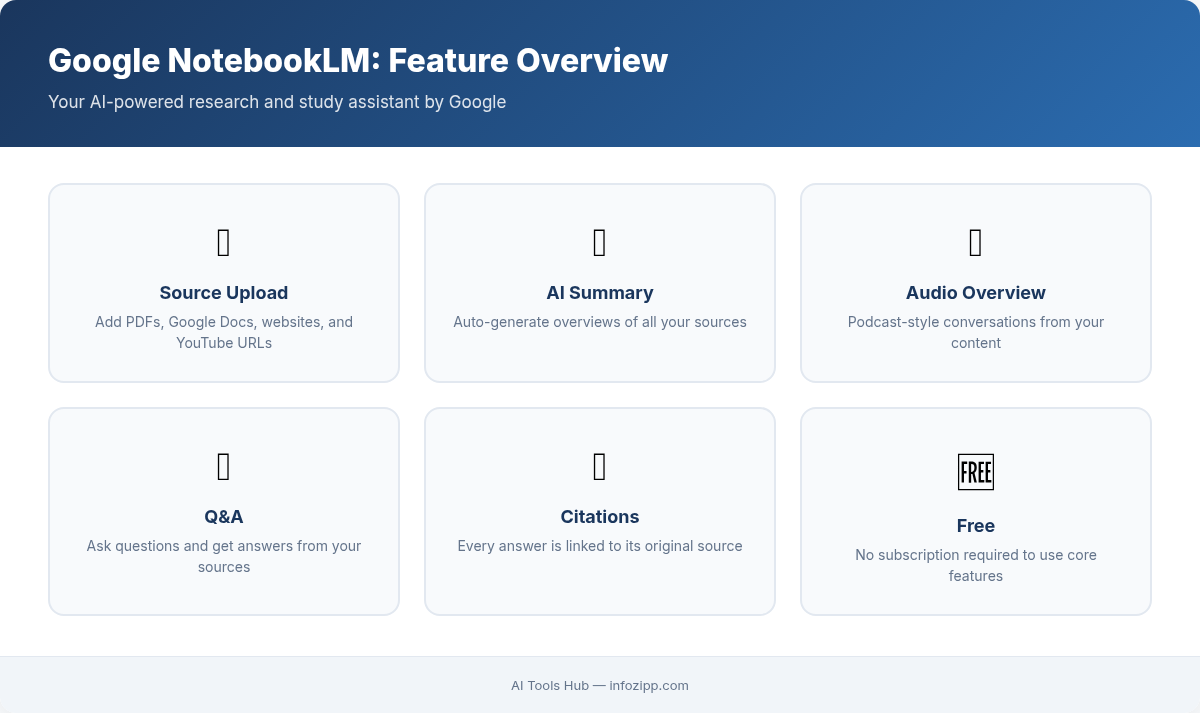
Google NotebookLM launched as an experimental project in 2023 and has since evolved into a genuinely powerful — and completely free — research tool. Whether you’re a student drowning in academic papers, a professional analyzing market reports, or a content creator trying to synthesize complex topics, NotebookLM deserves a permanent spot in your workflow.
In this comprehensive tutorial, we’ll walk through everything from uploading your first source to generating AI-powered audio overviews that turn your research into podcast-style discussions. Let’s dive in.
What Is Google NotebookLM and Why Should You Care?
Google NotebookLM is a free AI-powered research assistant built on Google’s Gemini model. Unlike general-purpose chatbots, NotebookLM is designed around a simple but powerful concept: you provide the sources, and the AI reasons only from those sources.
This source-grounded approach solves one of the biggest problems with AI tools — hallucination. When you ask NotebookLM a question, every answer comes with inline citations pointing back to the exact passage in your uploaded documents. You can verify every claim instantly.
Here’s what makes it stand out:
- Completely free — no subscription, no token limits for casual use
- Source-grounded responses — every answer is backed by your documents
- Inline citations — click to jump to the exact source passage
- Audio Overview generation — turns your research into AI-generated podcast discussions
- Multi-format support — PDFs, Google Docs, websites, YouTube videos, copied text, and more
- Google account integration — works seamlessly with your existing Google Workspace
Think of it as having a research assistant who has read everything you’ve collected and can answer questions, summarize findings, and even create study guides — all without making things up.
How to Use Google NotebookLM: Getting Started in Minutes
Getting up and running with NotebookLM is refreshingly simple. Here’s the step-by-step process:
Step 1: Access NotebookLM
Navigate to notebooklm.google.com and sign in with your Google account. That’s it — no waitlist, no API key, no credit card. The tool is available to anyone with a Google account in supported regions.
Step 2: Create Your First Notebook
Click “New Notebook” on the dashboard. Each notebook is a self-contained research project. You might create separate notebooks for different topics — one for a market analysis, another for a literature review, a third for competitive research.
Step 3: Upload Your Sources
This is where NotebookLM really shines. Click “Add Source” and choose from the following options:
- Google Docs — pull directly from your Drive
- Google Slides — import presentation content
- PDF files — upload research papers, reports, ebooks
- Website URLs — paste any web page link
- YouTube videos — import video transcripts automatically
- Copied text — paste raw text directly
You can add up to 50 sources per notebook, with each source supporting up to 500,000 words. That’s an enormous amount of material — enough for most research projects.
Pro tip: Start with your highest-quality sources first. NotebookLM’s answers are only as good as the material you feed it. Prioritize primary sources, peer-reviewed papers, and authoritative reports over casual blog posts.
Uploading Sources: A Detailed Walkthrough
Understanding how to upload sources effectively is critical to getting the most out of Google NotebookLM. Let’s break down each source type and best practices.
PDFs and Research Papers
PDFs are the bread and butter of academic research in NotebookLM. Simply drag and drop your files or click the upload button. The AI processes the full text, including tables and structured data. A few things to keep in mind:
- Scanned PDFs (image-only) may not process correctly — use OCR-processed versions when possible
- Very long PDFs work fine, but consider splitting extremely large documents if they exceed the word limit
- Charts and images within PDFs are not analyzed — NotebookLM works with text content
Website URLs
Pasting a URL lets NotebookLM crawl and ingest the page content. This is excellent for adding blog posts, news articles, documentation pages, and online reports to your research. The tool extracts the main content and strips away navigation, ads, and sidebars.
YouTube Videos
One of NotebookLM’s most impressive features is YouTube integration. Paste a YouTube URL and the tool automatically pulls the video transcript. This means you can:
- Add conference talks and lectures to your research
- Include expert interviews as source material
- Combine video content with written sources for richer analysis
The AI treats the transcript as a searchable document, so you can ask questions about anything discussed in the video.
Google Docs and Slides
If your research materials live in Google Workspace, integration is seamless. Select files directly from your Drive without downloading and re-uploading. Changes to the source document can be refreshed in NotebookLM as well.
Asking Questions and Interacting With Your Sources
Once your sources are loaded, the real power of NotebookLM emerges. The chat interface at the bottom of the screen lets you ask questions, and the AI responds based exclusively on your uploaded materials.
Types of Questions That Work Best
NotebookLM excels at several question types:
- Synthesis questions: “What are the main arguments across all my sources about remote work productivity?”
- Comparison questions: “How do Source A and Source B differ on their recommendations for content marketing?”
- Extraction questions: “What statistics does the McKinsey report cite about AI adoption rates?”
- Summary requests: “Summarize the key findings from each source in bullet points”
- Critical analysis: “What gaps or contradictions exist across my sources?”
Understanding Inline Citations
Every response from NotebookLM includes numbered citations. Click on any citation number, and the source panel on the left highlights the exact passage the AI is referencing. This is invaluable for:
- Verifying accuracy before including claims in your own work
- Finding the original context around a quoted statistic or claim
- Building a proper bibliography or reference list
Using the Source Guide
When you first add sources, NotebookLM automatically generates a Source Guide with suggested questions and key topics. This is a fantastic starting point if you’re not sure what to ask. The suggested questions often surface insights you might not have considered.
Generating Audio Overviews: NotebookLM’s Killer Feature
If there’s one feature that makes NotebookLM truly unique, it’s Audio Overviews. This feature generates a podcast-style audio discussion between two AI hosts who review and discuss your uploaded sources.
How Audio Overviews Work
Click the “Generate” button in the Audio Overview section of the notebook studio. NotebookLM will analyze all your sources and produce a conversational audio discussion that typically runs 5-15 minutes. The two AI hosts will:
- Summarize key findings from your sources
- Highlight interesting connections between documents
- Explain complex concepts in accessible language
- Debate different perspectives found in the material
Customizing Audio Overviews
You don’t have to accept the default overview. Before generating, you can provide custom instructions to guide the conversation. For example:
- “Focus specifically on the financial data and market projections”
- “Explain this as if the audience has no technical background”
- “Emphasize the practical applications rather than the theory”
- “Compare the two competing frameworks discussed in the sources”
This level of control means you can generate multiple audio overviews from the same sources, each with a different angle or audience in mind.
Practical Uses for Audio Overviews
Audio Overviews aren’t just a novelty — they serve real purposes:
- Studying: Listen to a discussion of your course materials during your commute
- Team briefings: Share an audio summary of a report with colleagues who don’t have time to read it
- Content creation: Use the generated discussion as inspiration for your own podcast or video scripts
- Accessibility: Provide an audio alternative for visually impaired team members
Note: Audio Overview generation can take a few minutes depending on the volume of source material. The resulting audio is downloadable and shareable.
Organizing Your Notebooks and Notes
As your research grows, organization becomes essential. NotebookLM provides several tools to keep things manageable.
Creating and Pinning Notes
Any response from the AI can be saved as a Note in your notebook. These notes persist in the right panel and can be:
- Edited and refined with your own annotations
- Pinned for quick access
- Combined into longer documents
- Used as additional context for future questions
Using Notes Strategically
Here’s a workflow that maximizes productivity:
- Upload all relevant sources to your notebook
- Ask broad summary questions to get an overview
- Save the best responses as notes
- Ask follow-up questions that drill deeper into specific topics
- Compile your notes into an outline or draft
- Generate an Audio Overview for a final synthesis
This structured approach transforms NotebookLM from a simple Q&A tool into a complete research workflow.
Real-World Use Cases for Google NotebookLM
Let’s look at how different professionals and students are using this tool to accelerate their work.
Academic Research
Graduate students and researchers can upload dozens of papers related to their thesis topic. NotebookLM then becomes a literature review assistant — identifying themes, contradictions, and gaps across the collected work. Instead of spending weeks manually cross-referencing papers, you can surface key connections in minutes.
Business Analysis
Upload quarterly earnings reports, industry analyses, and competitor filings. Ask NotebookLM to compare performance metrics, identify trends, or summarize strategic differences between competitors. It’s like having a junior analyst who has read every document in your research stack.
Content Creation
Content creators can upload reference articles, expert interviews, and data sources, then use NotebookLM to identify the most interesting angles for a new piece. The Audio Overview feature is particularly useful here — it can highlight connections and framings you might not have seen. Here at AI Tools Hub, we use tools like NotebookLM regularly to research and synthesize information for our guides.
Learning and Professional Development
Upload a textbook chapter, a series of training videos (via YouTube links), and supplementary articles. Use NotebookLM to create study guides, quiz yourself on the material, and generate audio summaries for on-the-go review. It’s an incredibly efficient way to master new subjects.
Legal and Policy Analysis
Lawyers and policy analysts can upload contracts, regulations, and case documents. NotebookLM can compare clauses across contracts, identify relevant precedents from case documents, and summarize complex regulatory language in plain English.
NotebookLM vs. Other AI Research Tools
How does NotebookLM stack up against other popular AI tools for research? Each has distinct strengths, and understanding the differences helps you choose the right tool for the job.
NotebookLM vs. Perplexity AI
Perplexity AI is an excellent research tool that searches the live internet and provides cited answers. The key difference is the source of information:
- Perplexity searches the open web — great for discovering new information and getting current answers
- NotebookLM works with your uploaded sources — ideal for deep analysis of specific documents you’ve curated
For most researchers, these tools are complementary rather than competitive. Use Perplexity to find and gather sources, then upload the best ones to NotebookLM for deep analysis.
NotebookLM vs. ChatGPT
ChatGPT is a general-purpose AI assistant that can discuss almost anything. However:
- ChatGPT’s knowledge has a training cutoff and can hallucinate
- NotebookLM’s responses are always grounded in your specific sources
- ChatGPT is better for brainstorming and generating original content
- NotebookLM is better for source-based analysis and verified research
Think of ChatGPT as a brilliant generalist and NotebookLM as a meticulous research librarian.
NotebookLM vs. Claude
Anthropic’s Claude offers long-context windows that can process lengthy documents. While Claude is powerful for document analysis in a conversational setting, NotebookLM provides a more structured research environment with persistent notebooks, saved notes, and the unique Audio Overview feature.
When to Use Which Tool
| Scenario | Best Tool |
|---|---|
| Exploring a new topic from scratch | Perplexity AI |
| Deep analysis of your own documents | NotebookLM |
| Brainstorming and creative writing | ChatGPT / Claude |
| Studying with verified citations | NotebookLM |
| Quick factual questions | Perplexity AI |
| Generating audio summaries | NotebookLM |
For a broader look at free AI tools that can enhance your workflow alongside NotebookLM, check out our roundup of the 15 best free AI tools available in 2026.
Tips and Best Practices for Power Users
After extensive use, here are the strategies that make the biggest difference in getting high-quality results from NotebookLM.
Curate Your Sources Carefully
NotebookLM operates on a “garbage in, garbage out” principle. The quality of your sources directly determines the quality of answers. Prioritize:
- Primary sources over secondary commentary
- Recent publications over outdated material
- Authoritative sources (peer-reviewed, official reports) over informal content
Ask Specific, Targeted Questions
Vague questions get vague answers. Instead of asking “What does this say about AI?”, try “According to the McKinsey report, what is the projected economic impact of generative AI on the healthcare sector by 2030?”
Use Follow-Up Questions
Don’t treat each question as isolated. Build on previous answers. If NotebookLM mentions an interesting finding, ask it to elaborate, provide more context, or compare that finding with other sources in the notebook.
Leverage Notes as Building Blocks
Save the best responses as notes, then ask NotebookLM to combine or refine those notes into a coherent outline or draft. This iterative process produces much better results than trying to get a perfect answer in a single query.
Experiment With Audio Overview Prompts
Don’t just generate one Audio Overview per notebook. Try different custom instructions to get discussions from various angles — a technical deep dive, a beginner-friendly explainer, a critical debate. Each version may reveal new insights from the same source material.
Current Limitations to Be Aware Of
No tool is perfect, and being aware of NotebookLM’s limitations helps you use it more effectively:
- No real-time web access: NotebookLM only knows what’s in your uploaded sources. It cannot search the internet or access information outside your notebook.
- Image and chart analysis: The tool works with text. Charts, graphs, and images within PDFs are not analyzed (though their captions may be).
- Source limit: 50 sources per notebook is generous but may be constraining for very large research projects. Consider creating multiple themed notebooks.
- Audio Overview length: Generated audio discussions have a maximum length, which means very complex topics may be simplified.
- Language support: While improving, the tool works best with English-language sources.
Getting Started Today: Your Action Plan
Ready to integrate NotebookLM into your research workflow? Here’s a practical action plan:
- Pick a current project — choose something you’re actively researching
- Gather 5-10 key sources — PDFs, articles, videos related to your topic
- Create a notebook at notebooklm.google.com and upload everything
- Start with the Source Guide — use the suggested questions to explore your material
- Ask 3-5 specific questions — save the best answers as notes
- Generate an Audio Overview — listen to an AI discussion of your sources
- Build from there — refine your notes into an outline, draft, or presentation
The entire process takes about 15 minutes to set up and immediately starts saving you hours of manual reading and cross-referencing. Google NotebookLM may not have the brand recognition of ChatGPT, but for focused, source-based research, it’s arguably the better tool — and it won’t cost you a cent.
If you found this tutorial helpful, explore more of our AI research tool guides to build the ultimate productivity stack.

Alex Kim is an AI tools reviewer and tech writer with over 5 years of experience evaluating SaaS and AI products. He specializes in hands-on comparisons of AI writing assistants, coding tools, and productivity software — testing each tool through real-world workflows before publishing any recommendation. His mission at AI Tools Hub is to help readers cut through the hype and find AI tools that actually deliver results.