OpenAI’s Sora went from a jaw-dropping research demo to a production tool that lives inside ChatGPT. If you have a Plus or Pro subscription, you already have access to one of the most capable AI video generators on the market—you just might not know how to get the best results from it.
This guide covers everything from your first generation to advanced techniques like Storyboard mode and Remix. By the end, you will know exactly how to write prompts that produce the videos you actually want, which settings to use for different projects, and how to avoid the mistakes that waste your limited monthly credits.
What Is Sora and How Does It Work
Sora is OpenAI’s text-to-video and image-to-video AI model, now in its second generation (Sora 2). It generates original video clips from written descriptions, uploaded images, or existing videos you want to modify.
Under the hood, Sora uses a diffusion transformer architecture. It processes your text prompt through a language model to understand the scene, then generates video frames through a denoising process—starting from visual noise and progressively refining it into coherent footage. The model was trained on a massive dataset of video and image data, giving it an understanding of how objects move, how light behaves, and how cameras work.
What makes Sora 2 notable in 2026 is not raw quality—competitors like Veo 3.1 and Kling 3.0 match or exceed it in certain benchmarks. The differentiator is accessibility. Sora 2 is embedded directly into ChatGPT, the world’s most popular AI interface. There is no separate app to download, no new account to create, and no new interface to learn.
How to Access Sora AI
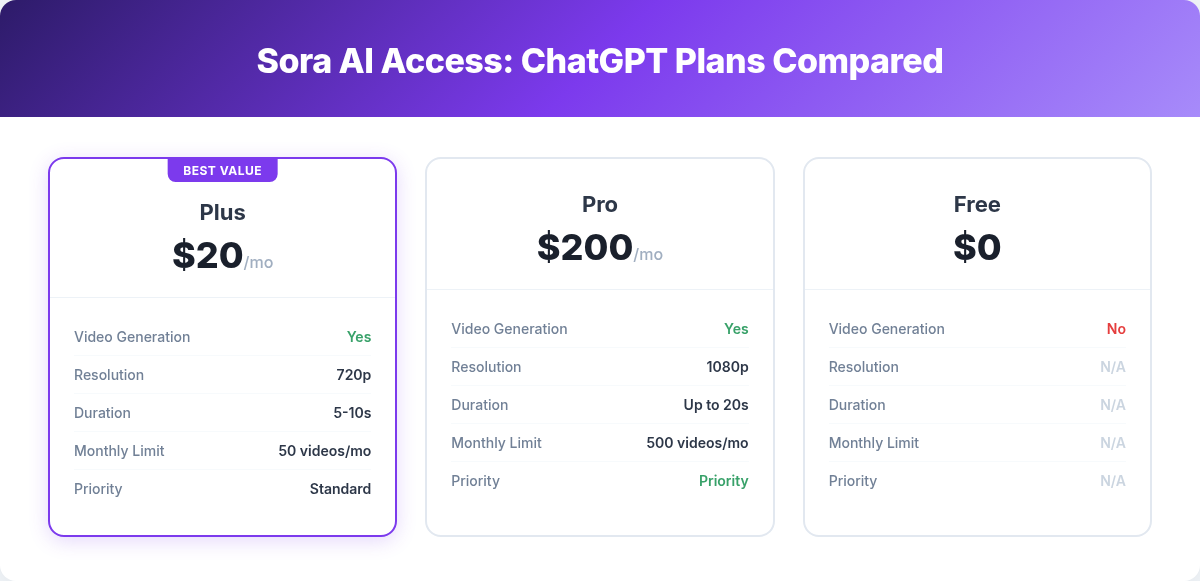
Sora 2 is available through two ChatGPT subscription tiers:
| Plan | Monthly Cost | Video Generations | Max Resolution | Max Duration | Concurrent Jobs |
|---|---|---|---|---|---|
| ChatGPT Plus | $20/mo | ~50 videos/mo (720p) or ~25 (1080p) | 1080p | 20 seconds | 1 |
| ChatGPT Pro | $200/mo | ~500 videos/mo (720p) or ~250 (1080p) | 1080p | 20 seconds | 5 |
Important note: The free tier of ChatGPT does not include Sora access. You need at minimum a Plus subscription.
Step-by-Step: Accessing Sora for the First Time
- Log into ChatGPT at chatgpt.com with your Plus or Pro account.
- Open a new chat or use an existing conversation.
- Look for the video generation option. You can either type a video prompt directly (e.g., “Generate a video of a golden retriever running on a beach at sunset”) or click the attachment/media icon and select the video generation mode.
- Configure settings. Before generating, you can adjust aspect ratio, duration, and resolution. We cover the optimal settings for each use case below.
- Generate. Click send and wait. Generation typically takes 1–4 minutes depending on settings and server load.
That is genuinely it. If you have used ChatGPT before, you already know 90% of the interface.
Sora Generation Modes Explained
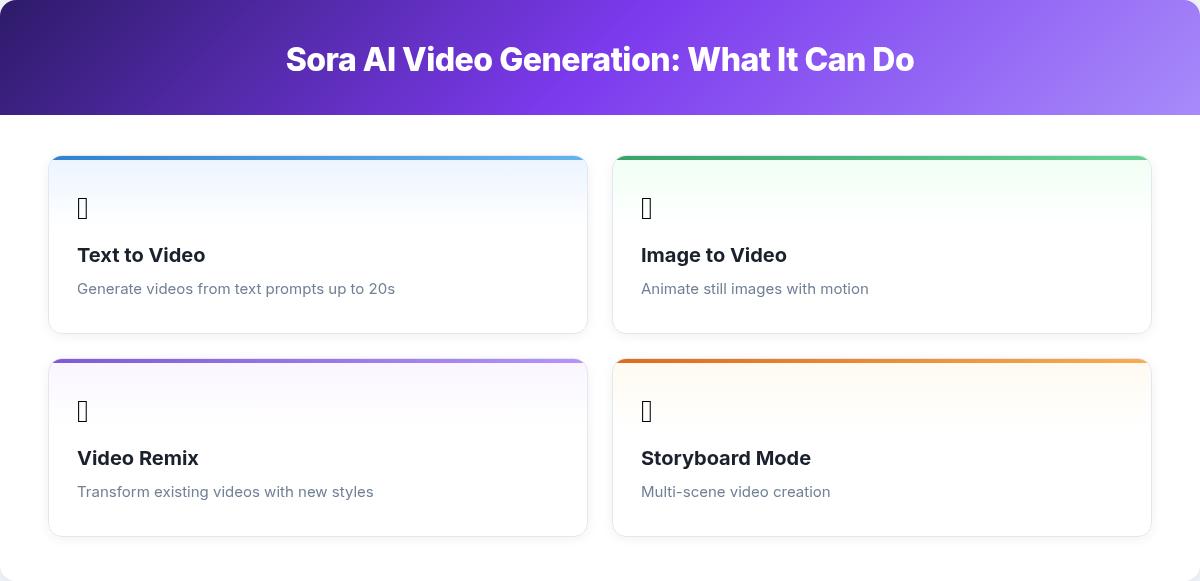
Sora 2 offers four distinct generation modes. Each serves a different creative purpose.
1. Text-to-Video
The default mode. Write a description of the video you want, and Sora generates it from scratch.
When to use: You have an idea but no visual reference. You want the AI to handle all creative decisions about composition, color, and camera work.
Example prompt:
A slow dolly shot through a neon-lit Tokyo alley at night. Rain puddles reflect pink and blue signs. A cat sits on a vending machine, watching pedestrians pass with umbrellas. Cinematic, moody, 4:3 aspect ratio.
2. Image-to-Video
Upload a still image and Sora animates it, creating motion from the static source.
When to use: You need consistent visual style. You have product photos, illustrations, or AI-generated images (from tools like Midjourney or FLUX) that you want to bring to life.
How to do it: Upload the image to the chat, then describe the motion you want. Be specific about what should move and how.
Example prompt (with uploaded image):
Animate this image. The woman slowly turns her head to face the camera and smiles. Her hair moves gently as if in a light breeze. The background remains static. Slow motion, 5 seconds.
3. Remix Mode
Upload an existing video and modify it. Change the style, swap elements, or alter the mood while preserving the original motion and structure.
When to use: You have footage (real or AI-generated) that is close to what you want but needs a different visual treatment—different color palette, art style, or environmental changes.
Example prompt (with uploaded video):
Transform this video into a Studio Ghibli animation style. Keep the same camera movements and character positions, but render everything as hand-drawn anime with soft watercolor textures.
4. Storyboard Mode
Plan a multi-shot video sequence where different segments have different prompts. This is the most advanced mode and the closest Sora comes to a full video production tool.
When to use: You are creating narrative content, tutorials, or any video that needs multiple distinct scenes connected into a cohesive piece.
How to do it: Describe each segment separately with timing cues. Sora generates each segment and stitches them together.
Example prompt:
Storyboard with 3 shots:
Shot 1 (0–5s): Wide establishing shot of a futuristic city skyline at dusk. Flying vehicles in the distance.
Shot 2 (5–12s): Medium shot of a woman in a silver jacket walking through a crowded market street. Camera follows her from behind.
Shot 3 (12–20s): Close-up of her hand scanning a holographic display at a vendor stall. The display shows alien script.
Settings and Configuration Guide
Getting the settings right before you hit generate saves credits and frustration. Here is what each setting does and when to change it.
Aspect Ratio
- 16:9 (Widescreen) — Default. Best for YouTube, presentations, and general-purpose video. Use this unless you have a specific reason not to.
- 9:16 (Vertical) — For TikTok, Instagram Reels, and YouTube Shorts. Essential for social-first content.
- 1:1 (Square) — Works well for Instagram feed posts and some ad formats.
- 4:3 — Gives a retro or cinematic feel. Good for artistic projects.
- 21:9 (Ultra-wide) — Cinematic letterbox format. Great for establishing shots and dramatic sequences.
Duration
Sora 2 supports four duration options: 5 seconds, 10 seconds, 15 seconds, and 20 seconds.
Practical advice:
- 5 seconds is enough for most social clips, product showcases, and B-roll footage. It also uses the fewest credits.
- 10 seconds is the sweet spot for most use cases. Long enough to establish a scene, short enough to maintain quality.
- 15 seconds works for narrative sequences and Storyboard mode segments.
- 20 seconds is the maximum. Motion coherence starts to drift in longer clips—use this only when you genuinely need the length.
Resolution
- 480p — Fast generation, low credit cost. Use for testing prompts before committing to a high-quality render.
- 720p — Good balance of quality and speed. Fine for social media and draft reviews.
- 1080p — Full quality. Uses roughly 2x the credits of 720p. Use for final outputs.
Pro tip: Always test your prompts at 480p first. Once you are happy with the composition and motion, regenerate at 1080p. This habit alone will double the effective value of your monthly credits.
Prompt Engineering for Sora: What Actually Works
The difference between a mediocre Sora output and a stunning one almost always comes down to the prompt. Here are the principles that consistently produce better results, based on our testing.
Be Specific About Camera Work
Sora understands cinematographic terms. Use them.
- Camera type: “slow dolly shot,” “steadycam tracking,” “drone aerial,” “handheld documentary style”
- Camera movement: “pan left to right,” “tilt up from ground level,” “zoom in slowly,” “static tripod shot”
- Framing: “extreme close-up,” “medium shot from chest up,” “wide establishing shot,” “over-the-shoulder”
Describe Lighting and Atmosphere
Lighting cues dramatically change output quality. Compare these two prompts:
Weak: “A woman walking in a forest.”
Strong: “A woman walking through a dense forest. Golden hour light filters through the canopy, casting long shadows on the mossy ground. Volumetric light rays. The atmosphere is warm and peaceful.”
The second prompt gives Sora specific visual targets for lighting, mood, and atmosphere. The result is significantly more cinematic.
Specify Motion, Not Just Scene
A common mistake is describing a static scene and hoping Sora adds interesting motion. Instead, explicitly describe what moves and how:
- “The camera slowly pushes forward through the doorway”
- “Wind ripples across the surface of the lake”
- “The subject turns to face the camera, pauses, then walks away”
- “Smoke rises slowly from the chimney and drifts left”
Use Style References
Sora responds well to stylistic cues:
- “Cinematic, shot on ARRI Alexa, shallow depth of field”
- “Documentary style, natural lighting, handheld”
- “Anime aesthetic, vibrant colors, dramatic lighting”
- “1970s film grain, muted earth tones, soft focus”
Full Example Prompt (Optimized)
Slow dolly shot pushing forward through an abandoned library. Dust particles float in beams of light streaming through broken windows. Bookshelves stretch to the ceiling on both sides, some collapsed. A single red book sits open on a table in the center of the frame. The camera moves steadily toward the book. Cinematic, shallow depth of field, muted colors with warm highlights. 16:9, 10 seconds.
This prompt works because it specifies: camera movement (dolly forward), atmosphere (dust, light beams), scene details (collapsed shelves, red book), motion (camera movement toward the book), and style (cinematic, shallow DOF, color grading).
Common Mistakes and Troubleshooting
Even with good prompts, Sora has quirks. Here are the most common issues and how to fix them.
Problem: Hands and Fingers Look Wrong
AI video still struggles with human hands. If your scene requires visible hands performing actions, try these workarounds:
- Frame the shot to avoid close-ups of hands (use medium or wide shots)
- If hands must be visible, keep the action simple (holding an object, resting on a surface)
- Use image-to-video mode with a reference image where hands are already positioned correctly
Problem: Text and Lettering Are Garbled
Sora cannot reliably generate readable text in videos. Signs, book titles, and screen displays will usually be illegible or nonsensical. Do not rely on Sora for text-heavy content. Add text in post-production instead.
Problem: Motion Becomes Incoherent After 10-15 Seconds
Longer clips tend to drift. Objects may change shape, characters may morph, or the scene may shift unexpectedly. Mitigation strategies:
- Keep clips to 10 seconds or less for maximum coherence
- Use Storyboard mode for longer sequences, with each segment at 5–10 seconds
- For important shots, generate multiple versions and pick the best one
Problem: Prompt Rejected by Content Filter
Sora’s content moderation blocks certain types of content including realistic violence, explicit material, and depictions of real public figures. If your prompt is rejected:
- Rephrase to avoid triggering words (e.g., “action scene” instead of “fight scene”)
- Use more abstract descriptions of the concept
- Try splitting the concept across multiple less-specific prompts
Problem: Generation Takes Too Long or Fails
During peak hours (US evenings, particularly), Sora generation can be slow or fail entirely. Solutions:
- Generate during off-peak hours if possible
- Start with 480p to test, then upscale only your best prompts
- If a generation fails, wait a few minutes and retry—server congestion usually clears within 10–15 minutes
Sora vs the Competition: When to Use Something Else
Sora 2 is excellent, but it is not always the best tool. Here is when to consider alternatives:
- You need video with synchronized audio: Use Veo 3.1. It is the only major tool that generates sound natively with the video.
- You need hyper-realistic physics: Use Kling 3.0. Its physics engine handles gravity, fluid dynamics, and material interactions better than Sora.
- You need fine-grained editing control: Use Runway Gen-3 Alpha. Motion brush, camera controls, and inpainting give you frame-level control that Sora lacks.
- You need business avatar videos: Use Synthesia or HeyGen. Sora is not designed for talking-head presenter videos. See our HeyGen vs Synthesia vs D-ID comparison for this use case.
- You need high-volume social clips cheaply: Use Pika 2.5 or Kling 3.0. Both offer more generations per dollar than Sora.
For a full breakdown of every major AI video tool with side-by-side quality comparisons, read our complete guide to the best AI video generators in 2026.
AI Tools Hub Verdict: Is Sora Worth It in 2026
Sora 2 earns its spot in the top three AI video generators—not because it is the absolute best in any single dimension, but because it removes every barrier to getting started.
If you already pay $20/month for ChatGPT Plus, Sora costs you nothing extra. You open a chat, type a prompt, and get a video. No new subscriptions, no credit card decisions, no learning a new app. For the millions of people already inside the ChatGPT ecosystem, that is a compelling argument.
The output quality is genuinely good. It sits just behind Veo 3.1 in overall fidelity and behind Kling 3.0 in physics realism, but it beats both in ease of use and integration. The Storyboard and Remix modes add creative flexibility that most casual users will not find elsewhere.
The bottom line from AI Tools Hub:
- Use Sora if you already have ChatGPT Plus/Pro and want video generation without friction. It is the fastest path from idea to video.
- Skip Sora if you need audio in your video (use Veo 3.1), need production-grade editing controls (use Runway), or need more generations per dollar (use Kling 3.0).
- Upgrade to Pro ($200/mo) only if you are generating videos daily and the Plus limits genuinely constrain your workflow. For most users, Plus is sufficient.
YouTube creators building full production workflows should pair Sora with the right supporting tools. Our guide to AI tools for YouTube creators covers scripting, thumbnail creation, and editing tools that complement Sora’s generation capabilities.
For voiceover and narration to pair with your Sora videos, see our best AI voice generators comparison.
Frequently Asked Questions
Is Sora free to use?
No. Sora 2 requires a ChatGPT Plus ($20/mo) or Pro ($200/mo) subscription. There is no free tier for Sora. If you are looking for free AI video options, Kling 3.0, Pika, and Luma Dream Machine all offer limited free tiers.
Can I use Sora videos commercially?
Yes. Under OpenAI’s current terms of service, content you generate with Sora belongs to you and can be used commercially. However, you should not represent AI-generated content as real footage in deceptive contexts. Always check the latest terms, as policies evolve.
What is the maximum video length Sora can generate?
Sora 2 generates clips up to 20 seconds long. For longer content, use Storyboard mode to chain multiple segments together, or edit clips together in a standard video editor.
Does Sora generate audio or music?
No. Sora 2 generates silent video only. You will need to add audio in post-production. Pair it with an AI voice generator for narration or use a royalty-free music library for background audio.
Why does my Sora prompt keep getting rejected?
Sora uses OpenAI’s content moderation system. Prompts involving realistic violence, explicit content, real public figures, or politically sensitive content may be blocked. Try rephrasing with more abstract or neutral language. If your prompt is entirely benign and still rejected, it may be hitting a false positive—rewording usually resolves this.
Can I upload my own video to Sora?
Yes. Remix mode allows you to upload an existing video and modify it with text prompts. You can change the visual style, alter elements within the scene, or apply creative transformations while preserving the original motion structure.

Alex Kim is an AI tools reviewer and tech writer with over 5 years of experience evaluating SaaS and AI products. He specializes in hands-on comparisons of AI writing assistants, coding tools, and productivity software — testing each tool through real-world workflows before publishing any recommendation. His mission at AI Tools Hub is to help readers cut through the hype and find AI tools that actually deliver results.